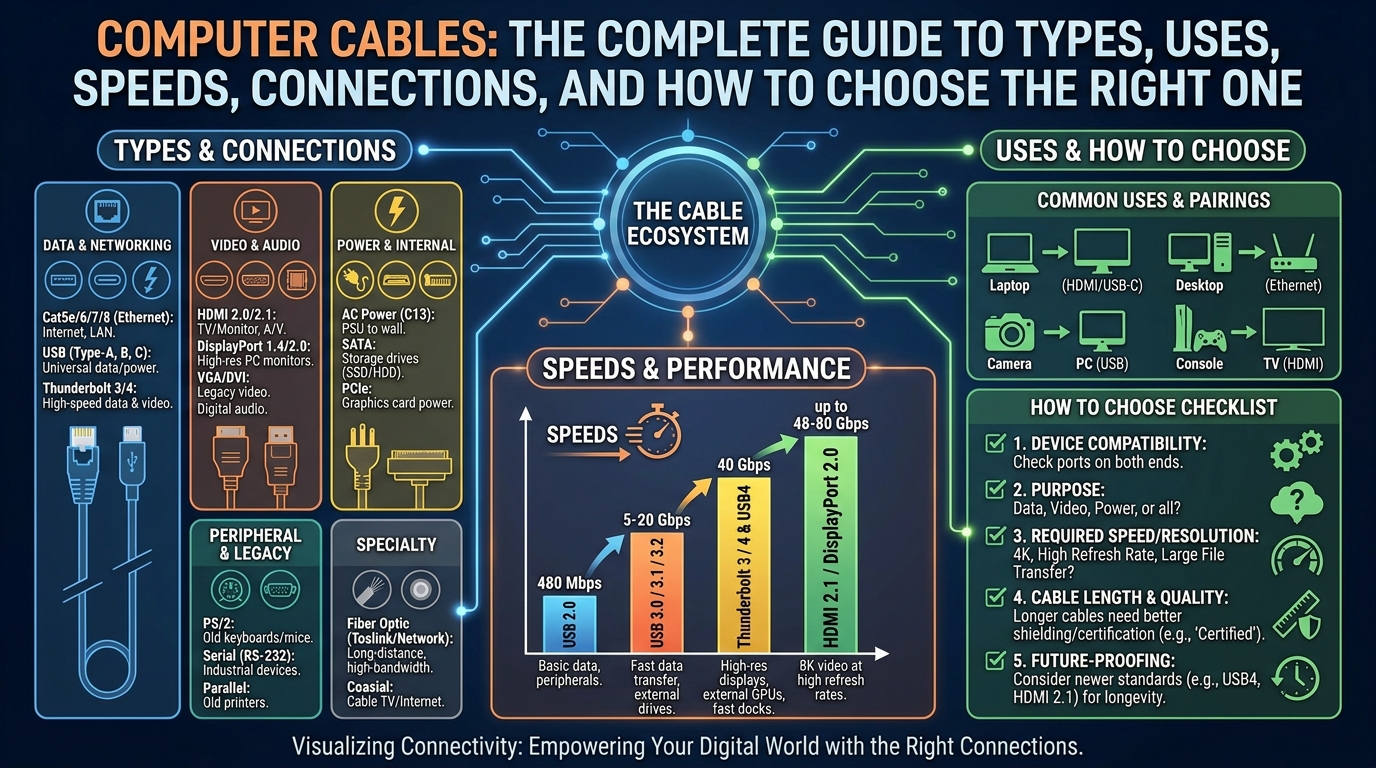
Computer Cables: The Complete Guide to Types, Uses, Speeds, Connections, and How to Choose the Right One
Computer cables are easy to overlook until something stops working. A monitor suddenly says “No Signal,” a laptop charges slowly, a hard drive transfers files at frustrating speeds, or an Ethernet connection keeps dropping. In many cases, the problem comes down to choosing the wrong computer cables or using a cable that does not support the capabilities of the connected devices.
Modern computers rely on a surprisingly wide range of cables for power, data, networking, audio, and video. USB-C, HDMI, DisplayPort, Ethernet, SATA, Thunderbolt, USB-A, and power cables can look completely different while performing overlapping or highly specialized jobs.
This guide explains the major types of computer cables, what they do, how their specifications differ, and how to choose the right cable for your PC, laptop, gaming setup, workstation, or home office. Whether you are replacing an old cable or building a new computer setup, understanding bandwidth, connectors, power ratings, cable length, and certification can help you avoid compatibility problems and unnecessary spending.
What Are Computer Cables?
At the simplest level, computer cables are physical connections that allow computers and peripheral devices to exchange electrical power, digital data, audio, video signals, or network traffic.
A cable typically contains conductors surrounded by insulation and protective layers. Depending on its purpose, it may also include shielding, specialized connectors, signal-conditioning components, or electronic circuitry.
For example, an Ethernet cable carries network signals between a computer and router, while an HDMI cable primarily transports digital audio and video between compatible devices. A USB cable can transfer data, supply power, or perform both functions simultaneously.
The important point is that the connector alone does not always tell you what a cable can do. This is particularly true with USB-C. The USB Implementers Forum explains that USB Type-C is a connector ecosystem rather than a guarantee of a specific data speed or capability. Its current compliance documentation also requires compatible USB-C-to-USB-C cables to communicate power capabilities and, for most cable categories, supported data rates through appropriate markings.
That distinction is essential when shopping for computer cables.
Why Computer Cables Matter More Than You Think
A computer may have an advanced processor, fast SSD, powerful graphics card, and high-refresh-rate monitor, but the wrong cable can prevent the system from taking advantage of that hardware.
Imagine buying a 4K 144Hz gaming monitor and connecting it with a cable that cannot support the required bandwidth. The monitor itself may be perfectly capable, but you may experience a reduced refresh rate, lower resolution, intermittent signal, or no display at all.
The same principle applies to storage and networking.
A high-speed external SSD connected through an older USB cable may transfer files significantly more slowly than expected. A gigabit Ethernet connection can also be limited if the cable, network hardware, or connectors cannot support the required performance.
In practical computer troubleshooting, cables should therefore be treated as part of the complete connection system—not as an afterthought.
Main Types of Computer Cables
There are many specialized computer cables, but most home and business users encounter a core group regularly. Understanding these categories makes it much easier to identify the right connection.
USB Cables
USB is one of the most common standards in modern computing. USB cables connect computers with keyboards, mice, external drives, smartphones, docking stations, printers, webcams, audio devices, and other peripherals.
USB cables exist with several connector types, including USB-A, USB-B, Micro-USB, and USB-C.
USB-C has become especially important because the connector is compact and reversible and can support multiple functions depending on the implementation. USB Type-C can carry data and power and can also support DisplayPort-based video through compatible systems.
However, not every USB-C cable provides the same performance.
Some USB-C cables are designed mainly for charging and basic data. Others support much faster data transfer and higher power levels. USB Power Delivery 3.1 can support power delivery of up to 240W over suitable full-featured USB Type-C cables.
When buying USB-C computer cables, check both the advertised data rate and power rating rather than assuming every USB-C cable is identical.
USB-A Cables
USB-A is the familiar rectangular connector found on many desktop computers, older laptops, keyboards, mice, printers, and other peripherals.
USB-A has been widely used for decades and remains common despite the growth of USB-C.
A USB-A connector can be associated with different USB generations, meaning the physical connector does not automatically determine maximum data speed. The host computer, peripheral, cable, and USB standard all influence the final performance.
USB-A is therefore still useful, especially when connecting legacy peripherals to a desktop PC.
HDMI Cables
HDMI is one of the most widely recognized video connections. It is commonly used for monitors, televisions, graphics cards, laptops, projectors, game consoles, and home theater equipment.
HDMI cables carry digital video and audio through a single connection, making them particularly convenient for entertainment and display setups.
However, HDMI cables are available in different performance categories. HDMI’s official documentation distinguishes cable types according to their tested capabilities. For example, Premium High Speed HDMI cables are designed for up to 18Gbps, while Ultra High Speed HDMI cables support configurations up to 48Gbps. HDMI’s newer Ultra96 cable supports up to 96Gbps for HDMI 2.2 applications.
This makes cable labeling extremely important.
If you need a cable for a modern gaming display, do not simply search for “HDMI cable.” Determine the required resolution, refresh rate, HDR capability, and bandwidth first.
DisplayPort Cables
DisplayPort is especially popular in desktop computers, gaming PCs, professional workstations, and high-refresh-rate monitors.
It is often used to connect a graphics card directly to a computer monitor. DisplayPort supports high resolutions and refresh rates and has become an important interface for PC gaming and professional displays.
VESA, the organization responsible for DisplayPort, has developed increasingly capable versions of the standard, including DisplayPort 2.1. VESA also supports certified high-bandwidth cable categories such as DP40 and DP80 for Ultra High Bit Rate applications.
One major advantage of DisplayPort is its ability to work effectively with modern high-performance displays. Depending on the hardware and specification, DisplayPort can support features such as high refresh rates, adaptive synchronization, HDR, and multi-display configurations.
DisplayPort can also operate over USB-C through DisplayPort Alt Mode.
Ethernet Cables
Ethernet cables provide wired network connectivity.
A desktop computer may connect to a router, switch, access point, or network-attached storage device using Ethernet. Compared with Wi-Fi, wired Ethernet can provide predictable latency, stable throughput, and reduced interference in many environments.
Common Ethernet cable categories include Cat5e, Cat6, Cat6a, Cat7, and Cat8. The appropriate choice depends on the network speed, installation requirements, distance, and environment.
For a typical home gigabit network, Cat5e can often be sufficient. Users building faster networks may consider Cat6 or Cat6a depending on the hardware and future requirements.
One important lesson with computer cables is that buying the highest category available is not automatically necessary. A cable should match the network equipment and intended use.
SATA Cables
SATA cables are primarily associated with internal storage devices.
They connect SATA hard disk drives, SATA solid-state drives, and optical drives to compatible motherboard ports.
A SATA data cable is separate from the SATA power connection supplied by the power supply. Both connections are required for many internal SATA storage devices.
SATA remains important in desktop PCs even as NVMe SSDs connected through M.2 slots become increasingly common.
If you are upgrading an older desktop, SATA computer cables may be necessary for installing an additional hard drive or 2.5-inch SATA SSD.
Thunderbolt Cables
Thunderbolt combines high-speed data, video, and power capabilities over compatible hardware.
Modern Thunderbolt implementations commonly use the USB-C connector, which can create confusion because the physical connector may look identical to ordinary USB-C.
A Thunderbolt cable is not simply “a better USB-C cable.” The computer, dock, peripheral, and cable all need to support the required Thunderbolt functionality.
Thunderbolt is particularly useful for professional workflows involving external SSDs, docks, multiple displays, and other high-bandwidth peripherals.
For users with demanding workstation requirements, verifying the exact Thunderbolt generation and supported bandwidth is more important than simply checking whether a cable has a USB-C-shaped connector.
Computer Power Cables
Not all computer cables carry data.
Power cables deliver electricity to desktop PCs, monitors, printers, docking stations, external storage systems, and other equipment.
A desktop computer typically receives AC power through a power cable connected to the power supply unit. Internal components then receive power through specialized PSU connectors.
Power cables should never be selected purely on appearance. Voltage, current rating, connector type, grounding, and regional electrical standards matter.
For laptops, USB-C Power Delivery has increasingly changed the way power is delivered. Compatible USB-C systems can provide substantial power through a single cable, reducing the number of separate connections required at a workstation. USB-IF states that USB PD 3.1 expanded USB-C power capability to as much as 240W with appropriate equipment and cables.
Computer Cables for Monitors
Choosing display computer cables depends heavily on the monitor.
For basic 1080p office monitors, many common HDMI and DisplayPort connections will work without difficulty. The requirements become more demanding when you move to 1440p or 4K displays with high refresh rates.
For example, a 4K 144Hz gaming monitor requires considerably more bandwidth than a 1080p 60Hz office display.
Before buying a monitor cable, identify four specifications:
Resolution: 1080p, 1440p, 4K, 5K, 8K, or higher.
Refresh rate: 60Hz, 120Hz, 144Hz, 165Hz, 240Hz, or beyond.
Color and HDR requirements: Higher-quality video modes can increase bandwidth requirements.
Interface: HDMI, DisplayPort, USB-C, or another supported connection.
HDMI’s official cable guidance emphasizes using certified cable types for demanding applications. Its Ultra High Speed category is designed for up to 48Gbps, while Ultra96 supports up to 96Gbps.
USB-C Is Not Always the Same
One of the biggest mistakes consumers make with computer cables is assuming that identical connectors mean identical performance.
Two USB-C cables can look almost exactly the same while having different data rates, power capabilities, and supported functions.
For example, one cable may be suitable for basic charging, another may support high-speed data, and another may support video output and high-power charging.
USB-IF has responded to this problem with cable markings that communicate important performance information. Its current guidance requires compliant USB-C-to-USB-C cables to carry power capability markings, while most full-featured cables also identify supported data rates.
This is a good example of why specifications matter more than appearance.
Cable Length and Signal Quality
Longer is not always better.
As cable length increases, maintaining signal quality can become more challenging, particularly with high-bandwidth digital signals.
This is why a short, properly specified cable can sometimes work perfectly while a much longer version of a similar-looking cable produces instability.
For HDMI, the official specification does not prescribe one universal maximum cable length for all applications. Cable performance depends on factors including construction and cable type. Active cables can be used for certain applications where longer distances are required.
The same general principle applies to DisplayPort, USB, and other high-speed interfaces.
If your setup requires a long cable run, look for products specifically tested for the required bandwidth and distance instead of buying an inexpensive generic cable and hoping it works.
Passive vs. Active Computer Cables
Passive cables primarily rely on their physical construction to transmit signals.
Active cables contain electronics designed to improve or extend signal transmission.
Active cables can be useful for longer high-bandwidth connections, especially when signal attenuation becomes a concern.
VESA has specifically documented active DisplayPort cables as an option for longer installations, explaining that active cables can boost and equalize attenuated DisplayPort signals.
For normal desk setups, passive cables are usually simpler and more economical. For specialized installations, active or optical solutions may be appropriate.
How to Choose the Right Computer Cables
The best way to choose computer cables is to start with the devices rather than the cable itself.
First, identify the ports on both devices. A monitor might have HDMI and DisplayPort, while a laptop may have USB-C with DisplayPort Alt Mode.
Next, determine what you need the connection to accomplish. Are you transferring files, charging a laptop, connecting a display, or establishing a network connection?
Then check the required performance. Data rate, video resolution, refresh rate, power delivery, and cable length can all affect your choice.
Finally, look for reliable specifications and certification where applicable.
A cable described simply as “high speed” tells you much less than one that clearly states its supported data rate, power capability, video standard, or certification.
Mini Case Study: The 4K Gaming Monitor
Consider a gamer who purchases a 4K monitor capable of a high refresh rate.
The computer has a powerful graphics card, and the monitor itself supports the desired resolution and refresh rate. Yet the user can only select a lower refresh rate in Windows.
The first instinct might be to reinstall graphics drivers or replace the monitor.
A better troubleshooting step is to examine the connection.
If the existing HDMI or DisplayPort cable does not provide the necessary bandwidth, the hardware may negotiate a lower operating mode. Replacing it with an appropriately specified cable can resolve the problem.
The lesson is simple: the cable is part of the performance chain.
Mini Case Study: The Slow External SSD
Imagine another user purchasing a fast external SSD advertised for very high transfer speeds.
They connect it to a USB-C port and expect extremely fast file transfers. Instead, large files move considerably slower than expected.
The SSD may not be defective.
The cable may support a lower USB data rate, or the computer’s USB-C port may have different capabilities from another port on the same machine.
This illustrates why USB-C connector shape alone cannot be used to predict performance.
USB-IF’s current cable labeling approach specifically aims to make data-rate and power capabilities easier for consumers to identify.
Expert Insight on Cable Selection
Jeff Ravencraft, President and COO of the USB Implementers Forum, explained the reasoning behind clearer USB-C cable markings: “Consumers can easily identify the USB4 performance and USB Power Delivery capabilities of Certified USB-C Cables.”
That principle is useful well beyond USB-C.
When selecting computer cables, consumers should focus on measurable capabilities rather than vague marketing terms. Look for supported bandwidth, power rating, compatibility, certification, connector type, and appropriate cable length.
Common Computer Cable Mistakes
One common mistake is buying a cable based only on connector shape.
A second mistake is assuming an expensive cable is automatically better. Price can correlate with construction quality, but it does not replace checking specifications.
Another problem is buying excessively long cables. Extra length can introduce unnecessary signal challenges, particularly for high-speed connections.
Using unverified cables for high-power applications is another risk. USB-IF’s certification and labeling programs exist partly to make power capabilities clearer to consumers.
Finally, many users replace hardware before checking the cable. A systematic troubleshooting process should include the cable, connector, port, drivers, settings, and device compatibility before assuming that expensive hardware has failed.
How to Organize Computer Cables
Cable management is not just about making a desk look cleaner.
Good cable organization reduces strain on connectors and makes troubleshooting easier. Avoid sharply bending cables, especially near connectors.
Use appropriate cable ties or reusable straps rather than tightly crushing cables together. Keep power and signal cables organized so that they are not constantly pulling against ports.
Labeling cables can also help in complicated workstations.
For a desktop with multiple monitors, external drives, speakers, networking equipment, and peripherals, good organization can save considerable time when replacing or troubleshooting individual connections.
How to Troubleshoot a Faulty Cable
When a device suddenly stops working, begin with the simplest checks.
Disconnect and reconnect the cable at both ends. Check for visible damage, bent pins, loose connectors, or excessive strain.
Next, test the same device with a known-good cable. If the problem disappears, the original cable becomes the primary suspect.
You can also test the original cable with another compatible device.
For display problems, verify resolution and refresh-rate settings. For USB problems, check whether the port and cable support the expected data rate. For networking issues, test another Ethernet cable and inspect link-speed information.
This process is more reliable than immediately replacing expensive equipment.
Computer Cables and Future-Proofing
Technology changes quickly, but buying for the future does not mean purchasing the most expensive cable available.
Instead, choose a cable that comfortably exceeds your current requirements and is compatible with your likely upgrades.
For example, someone purchasing a new USB-C cable for a modern laptop might prefer a properly certified cable with sufficient power and data capability rather than a basic charging cable.
Similarly, someone building a high-end gaming PC should consider the monitor’s maximum resolution and refresh rate before selecting an HDMI or DisplayPort connection.
Standards continue to evolve. USB-IF released USB Type-C Cable and Connector Specification Release 2.5 in April 2026, demonstrating that USB-C continues to develop alongside newer computing requirements.
Are Expensive Computer Cables Worth It?
Sometimes, but not always.
A well-made cable can provide better construction, stronger connectors, appropriate shielding, reliable specifications, and certification.
However, a $100 cable is not automatically necessary for a simple keyboard or 1080p office monitor.
The smart approach is to match quality and specifications to the application.
A basic peripheral may need only a standard cable, while a professional workstation carrying high-bandwidth video and data should use appropriately tested products.
In other words, buy based on requirements rather than hype.
Quick Guide to Common Computer Cable Uses
For charging and modern laptop peripherals, USB-C is increasingly versatile.
For traditional USB peripherals such as keyboards and mice, USB-A remains widely compatible.
For televisions, consoles, and many monitors, HDMI is a common choice.
For gaming PCs and high-refresh-rate computer monitors, DisplayPort is frequently preferred.
For wired networking, Ethernet remains the standard choice.
For internal SATA storage, SATA data and power connections are used.
For demanding docks, external storage, and professional peripherals, Thunderbolt can provide a powerful high-bandwidth connection when supported by the entire system.
The right choice always depends on the devices and performance requirements involved.
FAQ About Computer Cables
What are the most common computer cables?
The most common computer cables include USB, USB-C, HDMI, DisplayPort, Ethernet, SATA, Thunderbolt, and AC power cables. Each serves a different purpose, although some modern interfaces can perform multiple functions.
Is USB-C the same as Thunderbolt?
No. USB-C describes a connector and associated ecosystem, while Thunderbolt is a separate high-performance connectivity technology that can use the USB-C connector. A USB-C port or cable does not automatically mean Thunderbolt support.
Which cable is best for a 4K monitor?
The best cable depends on the monitor’s refresh rate, HDR requirements, supported interface, and required bandwidth. HDMI and DisplayPort can both support 4K, but the specific cable category matters for high-refresh-rate and high-bandwidth configurations. HDMI’s official certification system provides specific cable categories for demanding applications.
Do USB-C cables have different speeds?
Yes. USB-C cables can support different data rates and power capabilities. The connector’s physical appearance does not guarantee a particular performance level. Look for clear markings and specifications when purchasing USB-C computer cables.
Can a bad cable cause a computer to run slowly?
A cable can limit the performance of a connected device. For example, an unsuitable USB cable can restrict external SSD transfer speeds, while an inadequate display cable can prevent a monitor from operating at its intended resolution or refresh rate.
How long should computer cables last?
A quality cable can last for years when handled properly, but lifespan depends on construction, bending, connector stress, environmental conditions, and frequency of use. Replace cables showing exposed wires, damaged connectors, excessive looseness, intermittent connectivity, or unexplained performance problems.
Final Thoughts on Computer Cables
Understanding computer cables is one of the easiest ways to improve a PC setup, avoid compatibility problems, and get the performance you paid for.
The most important lesson is that connectors do not tell the whole story. USB-C, HDMI, DisplayPort, Ethernet, SATA, and Thunderbolt cables can have different capabilities even when their physical connections appear similar.
Before purchasing a cable, identify the devices, determine the required data or video performance, check power requirements, consider cable length, and look for trustworthy certification or specifications.
For demanding applications, certified and properly labeled computer cables are especially valuable because they provide clearer information about supported performance. HDMI and USB-IF, for example, have established labeling and certification programs intended to reduce consumer confusion.
A cable may be one of the smallest components in your computer setup, but it can have a major effect on reliability and performance. Choose it with the same care you would give any other important piece of hardware.
If you are upgrading a PC, gaming desk, home office, or professional workstation, start by auditing your existing computer cables and replacing only those that fail to meet your actual requirements.