
SATA Hard Drive: Complete Guide to How It Works, Speeds, Types, Benefits, and Buying Tips
A SATA hard drive remains one of the most practical storage solutions for people who need large capacity without paying the premium associated with high-end solid-state storage. Whether you are upgrading an older desktop, building a home server, expanding a gaming PC, or simply looking for affordable backup storage, understanding how SATA technology works can help you choose the right drive.
Despite the popularity of NVMe SSDs, traditional hard disk drives have not disappeared. They continue to offer an attractive cost-per-terabyte advantage, especially when performance is less important than capacity. A modern SATA hard drive can provide several terabytes of storage for photos, videos, documents, games, backups, surveillance footage, and other large files.
This guide explains everything you need to know about SATA hard drive technology, including SATA generations, HDD versus SSD, capacities, speeds, connectors, compatibility, reliability, installation, maintenance, and buying considerations.
What Is a SATA Hard Drive?
A SATA hard drive is a traditional magnetic hard disk drive that communicates with a computer through the Serial ATA, or SATA, interface. Unlike older Parallel ATA technology, SATA uses a serial connection that simplified cabling and improved data-transfer capabilities.
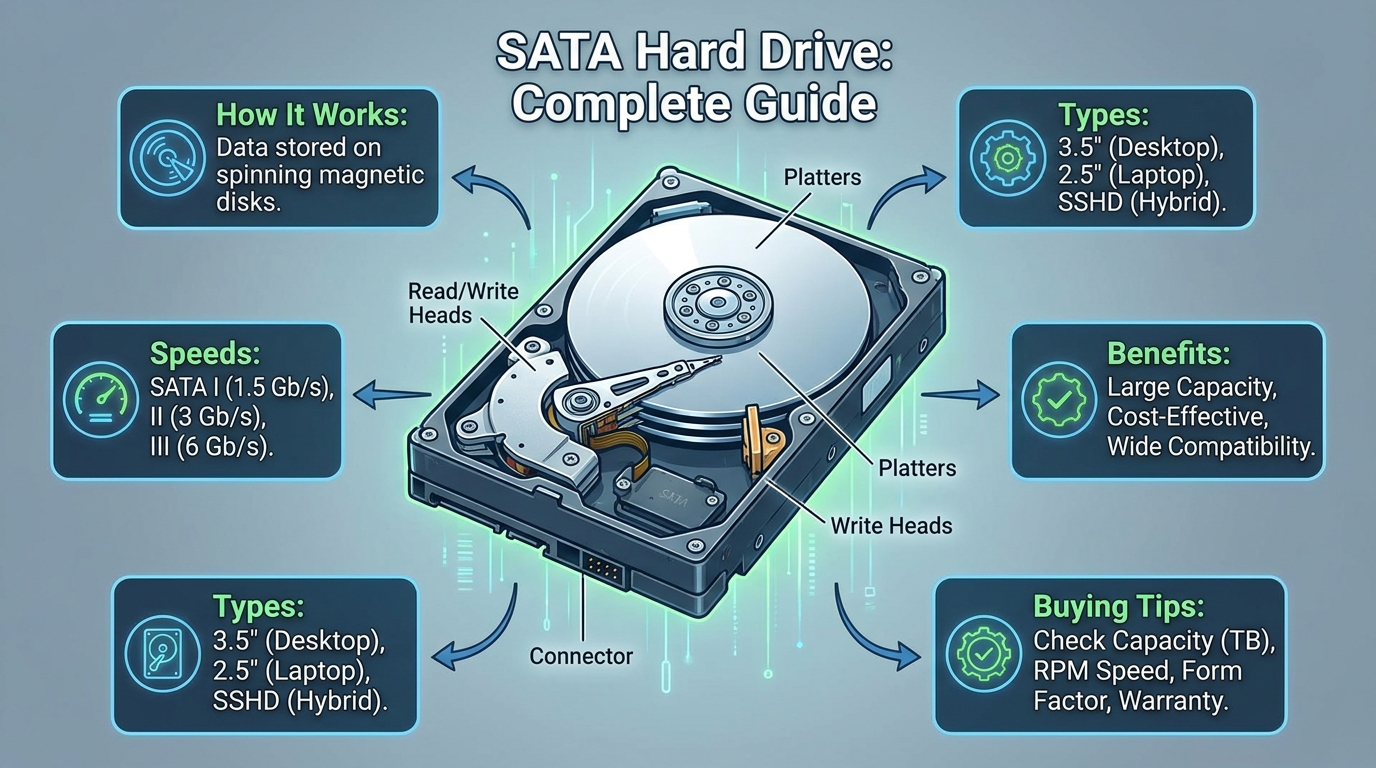
Inside a conventional SATA HDD are magnetic platters, a spindle motor, read/write heads, an actuator mechanism, onboard cache, and controller electronics. The platters rotate while the heads move across their surfaces to read and write magnetic information.
The SATA interface is responsible for connecting the drive to the computer’s motherboard. It does not determine every aspect of the drive’s performance. The mechanical design, rotational speed, cache, recording technology, workload, and firmware also influence real-world performance.
This distinction is important because a SATA hard drive and a SATA SSD can use the same interface while delivering dramatically different performance.
SATA-IO, the organization responsible for the SATA specification, identifies SATA Revision 3.0 as supporting a transfer rate of up to 6 Gb/s. The organization also notes that the 6 Gb/s standard is backward compatible with earlier 3 Gb/s and 1.5 Gb/s versions.
How Does a SATA Hard Drive Work?
A traditional SATA hard drive stores information magnetically rather than electronically in flash memory.
Inside the drive, one or more platters spin at a specified rotational speed, commonly 5,400 RPM or 7,200 RPM in consumer products. A tiny read/write head moves across each platter to locate the magnetic regions representing stored data.
When you save a file, the drive’s controller determines where the information should be placed. The actuator positions the head while the platter rotates underneath it. During reading, the head detects changes in magnetic patterns and converts them into digital information that the computer can process.
This mechanical design explains both the strengths and weaknesses of HDDs.
A hard disk can provide enormous storage capacity at relatively low cost, but its moving components introduce latency. The drive has to physically move the head and wait for the correct portion of the platter to rotate into position.
An SSD has no spinning platters or moving heads. It stores information in NAND flash memory, which is why an SSD generally provides much lower access latency and substantially higher random-access performance.
SATA Hard Drive vs. SATA SSD
One of the most common misconceptions is that SATA automatically means HDD. It does not.
SATA describes the interface, while HDD and SSD describe different types of storage technology.
A SATA HDD uses magnetic platters. A SATA SSD uses flash memory. Both can connect through a standard SATA data interface, although their performance characteristics are very different.
For example, a 7,200-RPM HDD may deliver sequential transfer speeds in the neighborhood of roughly 150–250 MB/s depending on the model, workload, and location of data on the platter. A quality SATA SSD can approach the practical limits of the SATA interface for sequential transfers.
The difference becomes even more obvious with random operations. Mechanical hard drives must physically reposition their heads, whereas flash storage can access many locations without mechanical movement.
For an operating system, application loading, professional software, and demanding games, an SSD is normally preferable.
For mass storage, archives, media libraries, backups, and other capacity-focused workloads, a SATA hard drive can still make excellent economic sense.
Understanding SATA Generations
SATA has evolved through several revisions.
SATA Revision 1.x supported up to 1.5 Gb/s.
SATA Revision 2.x increased the interface rate to 3 Gb/s.
SATA Revision 3.x increased the theoretical interface rate to 6 Gb/s. SATA-IO recommends using the formal names associated with these specifications rather than casually calling them “SATA I,” “SATA II,” or “SATA III.”
In everyday PC discussions, however, you will often see terms such as SATA II and SATA III. They remain common informal descriptions, even though they are not SATA-IO’s preferred terminology.
The important practical point is compatibility. A newer SATA hard drive can generally operate with an older compatible SATA controller, although its maximum interface speed will be limited by the older controller.
The reverse is also true: installing an older SATA drive on a newer SATA port does not magically make the drive faster.
SATA Interface Speed vs. Real Hard Drive Speed
A major buying mistake is assuming that a SATA 6 Gb/s drive transfers data at 6 gigabits per second.
The 6 Gb/s figure describes the interface’s signaling rate, not the mechanical HDD’s actual sustained storage performance.
Six gigabits per second is approximately 750 MB/s before accounting for protocol overhead and other limitations. A traditional mechanical HDD is generally much slower than that.
This means upgrading from an older SATA interface to SATA 6 Gb/s may not produce a dramatic improvement when the limiting factor is the mechanical drive itself.
The interface matters, but the drive mechanism matters more.
This is why two drives that both use SATA 6 Gb/s can have noticeably different performance.
SATA Hard Drive Sizes and Form Factors
Consumer SATA hard drive products are commonly found in two physical form factors: 3.5-inch and 2.5-inch.
A 3.5-inch HDD is common in desktop computers, workstations, NAS systems, and storage servers. It typically provides higher capacities and is designed for systems with enough physical space and appropriate power connections.
A 2.5-inch SATA HDD is smaller and historically common in laptops and compact computers. Many laptops have moved almost entirely to SSD storage, but 2.5-inch SATA drives remain useful for certain upgrades and external storage applications.
Physical compatibility matters. Before purchasing a drive, check your computer’s drive bay, mounting brackets, SATA data connection, and power requirements.
SATA Data Cable and Power Cable
A typical internal SATA hard drive requires two connections.
The SATA data cable connects the drive to a SATA port on the motherboard or storage controller.
The SATA power connector supplies electrical power from the computer’s power supply.
These connectors serve different purposes, so connecting only the data cable will not power a traditional internal HDD.
A desktop motherboard usually has multiple SATA ports, but the number varies by model. Some ports may also be disabled when particular M.2 slots or expansion interfaces are populated, depending on the motherboard’s architecture.
That is why checking the motherboard manual is a smart step when installing multiple storage devices.
What Capacity Should You Choose?
Capacity is one of the biggest reasons people still choose a SATA hard drive.
Common capacities include 1TB, 2TB, 4TB, 6TB, 8TB, 12TB, 16TB, and larger models. The right capacity depends heavily on your workload.
For general documents and occasional media, 1TB or 2TB may be sufficient.
For photography, video editing, game libraries, or large backups, 4TB to 8TB can provide a more comfortable amount of space.
For home servers, NAS systems, media collections, and professional archival workloads, much larger capacities may be more appropriate.
Remember that advertised capacity and usable capacity are not exactly the same. Manufacturers typically use decimal units, while operating systems may display capacity differently.
5,400 RPM vs. 7,200 RPM
Rotational speed is another important specification.
A 5,400-RPM SATA hard drive generally prioritizes lower power consumption, lower heat generation, and quieter operation.
A 7,200-RPM HDD generally provides better responsiveness and higher performance, although it can consume more power and produce more heat or noise depending on the design.
For a desktop where performance matters, 7,200 RPM can be attractive.
For bulk storage where energy efficiency and noise are priorities, a lower-RPM drive can be perfectly reasonable.
However, RPM is not the only factor. Areal density, cache, firmware, recording technology, and platter design can all affect actual performance.
CMR vs. SMR: Why Recording Technology Matters
When purchasing a SATA hard drive, you may encounter the terms CMR and SMR.
CMR stands for Conventional Magnetic Recording. SMR stands for Shingled Magnetic Recording.
CMR generally provides more predictable write behavior, especially for workloads involving frequent rewriting.
SMR increases storage density by overlapping magnetic tracks. This can allow manufacturers to provide greater capacity efficiently, but certain write-heavy workloads can behave differently because data may need to be reorganized internally.
For basic archival storage or workloads that write data sequentially and infrequently, SMR can be perfectly adequate.
For RAID arrays, heavy write workloads, professional storage systems, or applications involving frequent random rewrites, CMR is often the safer choice.
Always check the manufacturer’s specifications rather than assuming the recording technology based solely on capacity or model family.
SATA Hard Drive for Gaming
A SATA hard drive can still be useful for gaming, particularly as secondary storage.
Modern games can consume enormous amounts of storage, and maintaining a large library on SSDs can become expensive. An HDD can provide inexpensive space for games that you do not play frequently.
However, game loading times can be considerably longer than on an SSD.
For competitive gaming, an SSD is generally the better choice for the operating system and frequently played games. An HDD can then serve as secondary storage for less frequently accessed titles.
A practical configuration is to install Windows and frequently played games on an SSD while keeping large game libraries, recordings, installers, and archives on a SATA hard drive.
SATA Hard Drive for Backup Storage
One of the strongest use cases for a SATA hard drive is backup storage.
Large HDDs allow users to maintain local copies of important documents, photos, videos, and project files without spending as much per terabyte as they might on flash storage.
However, buying one HDD does not constitute a complete backup strategy.
If the only copy of a file exists on one drive, that file remains vulnerable to drive failure, accidental deletion, malware, theft, fire, and other risks.
A stronger strategy follows the familiar 3-2-1 approach: maintain multiple copies, use different storage media, and keep at least one copy in a separate location.
For especially important data, consider combining local HDD backups with cloud or off-site storage.
How Reliable Is a SATA Hard Drive?
The reliability of a SATA hard drive depends on its model, age, workload, operating environment, manufacturing quality, and many other factors.
There is no universal lifespan that applies to every HDD.
Large-scale research reinforces this point. A Google study examining more than 100,000 disk drives found that certain SMART indicators were associated with higher failure probabilities, while also concluding that SMART signals alone could not accurately predict every failure.
More recent large-scale operational data show why drive reliability should be considered statistically rather than as a guaranteed lifespan. Backblaze reported an annualized failure rate of 1.36% across 344,196 hard drives analyzed for 2025, while its Q1 2026 dataset reported a 1.24% annualized failure rate across 341,263 drives.
Those figures should not be interpreted as a prediction for your individual drive. Different models, environments, workloads, ages, and selection criteria can produce very different results.
An Expert Perspective on HDD Reliability
A useful perspective comes from the Google research team behind the large-scale FAST’07 disk study:
“Disk drives are generally very reliable but they are also very complex components.”
That observation remains relevant today. Reliability is not simply a matter of choosing the biggest or most expensive drive.
What Is SMART Monitoring?
SMART stands for Self-Monitoring, Analysis and Reporting Technology.
A SATA hard drive can use SMART attributes to report information about its condition, including various error counters, temperatures, operating hours, and sector-related information.
Some of the most useful indicators include reallocated sectors, pending sectors, uncorrectable errors, and other drive-specific health attributes.
However, SMART data should be interpreted carefully.
Research involving large populations of Google drives found that some SMART parameters were strongly associated with failure, while many drives still failed without providing clear predictive warnings.
In practical terms, a healthy SMART report is reassuring but is not a guarantee that the drive will never fail.
If a drive begins showing concerning SMART attributes, unusual noises, repeated read errors, or disappearing from the operating system, back up important information immediately.
How Long Does a SATA Hard Drive Last?
There is no fixed expiration date for a SATA hard drive.
Some drives operate reliably for many years, while others fail much earlier. Usage conditions matter, and enterprise workloads can be substantially different from ordinary home use.
An archival drive that is powered on occasionally may experience a different stress profile from a drive that operates continuously inside a busy server.
Age is also important, but age alone does not determine failure.
The best approach is to treat HDDs as replaceable components rather than permanent repositories. Maintain backups, monitor drive health, and replace drives proactively when they show concerning behavior.
Common Signs of a Failing SATA Hard Drive
A failing SATA hard drive may show several warning signs.
Unusual clicking, grinding, repeated spin-up attempts, disappearing drives, corrupted files, extremely slow file operations, operating-system errors, and frequent read failures can all indicate trouble.
However, not every symptom means the drive itself is failing. A damaged SATA cable, faulty power connector, motherboard problem, overheating, or software issue can create similar symptoms.
This is why troubleshooting should start by checking connections and system logs before assuming the drive mechanism is defective.
If important data is involved, avoid repeatedly stressing a suspicious drive. Create a backup or clone as soon as practical.
How to Install a SATA Hard Drive
Installing an internal SATA hard drive in a desktop computer is usually straightforward.
First, shut down the computer and disconnect power. Open the case and locate an available drive bay.
Secure the HDD using the appropriate mounting screws or mounting system. Then connect one SATA data cable between the drive and a compatible motherboard SATA port.
Next, connect the SATA power cable from the power supply.
After closing the case and powering on the system, enter the operating system’s disk-management utility to initialize, partition, and format the drive if it is new.
For a boot drive, additional BIOS/UEFI configuration may be necessary.
Always handle mechanical drives carefully. Avoid dropping or sharply moving a powered HDD because its internal components are mechanically delicate.
SATA Hard Drive vs. NVMe SSD
If your main priority is speed, NVMe SSD technology is significantly ahead of mechanical HDDs.
NVMe drives communicate over PCI Express rather than the SATA interface and can provide much higher throughput and lower latency.
But that does not automatically make NVMe the best choice for every storage job.
A SATA hard drive remains attractive when capacity and price per terabyte are more important than access speed.
For example, imagine a photographer with 12TB of images and video. Keeping every file on premium NVMe storage could be expensive and unnecessary. An SSD might be used for active projects, while HDDs hold completed projects and backups.
This hybrid approach can deliver both performance and economical capacity.
Mini Case Study: A Home Media Server
Consider a household with a large movie, music, photo, and backup collection.
The owner could use a fast SSD for the operating system and applications while using multiple high-capacity SATA hard drive units for media storage.
If the server supports redundancy, multiple drives can be configured appropriately to reduce the impact of a single drive failure.
However, redundancy is not the same as backup. RAID can improve availability, but it does not protect against every form of data loss.
A deleted file can disappear from a RAID array. Malware can affect files across multiple drives. A power event can damage several components.
The best architecture combines appropriate redundancy with independent backups.
Research on large storage systems also emphasizes that disks are not the only possible failure point. A USENIX study of roughly 39,000 storage systems found that physical interconnects and protocol components also contributed substantially to storage subsystem failures.
Are SATA Hard Drives Still Worth Buying?
Yes, for the right workload.
A SATA hard drive is still a sensible choice when you need inexpensive, high-capacity storage.
It is particularly useful for:
Large media libraries, backups, surveillance storage, archival data, desktop secondary storage, NAS systems, and files that do not require instant access.
An SSD is usually preferable for operating systems, applications, professional workloads, and performance-sensitive gaming.
The smartest solution is often not choosing HDD or SSD exclusively. Instead, use each technology where its strengths make sense.
What to Look for When Buying a SATA Hard Drive
Before buying a SATA hard drive, consider capacity first.
Next, determine whether the drive is designed for desktop, NAS, surveillance, or enterprise workloads. These categories can have different firmware, workload ratings, vibration tolerance, warranties, and expected operating environments.
Check whether the drive uses CMR or SMR if write behavior matters.
Look at rotational speed, cache, warranty terms, workload rating, and manufacturer specifications.
Do not choose solely on price. A slightly more expensive drive with the right workload characteristics can be a better long-term purchase.
Also verify physical compatibility, particularly for laptops, compact PCs, NAS devices, and older systems.
SATA Hard Drive Maintenance Tips
Good maintenance can reduce avoidable problems.
Keep desktop drives securely mounted and protected from excessive vibration.
Maintain reasonable airflow around drives, especially in systems containing several HDDs.
Use SMART monitoring where appropriate.
Maintain regular backups rather than waiting for warning signs.
Avoid filling a storage drive completely when possible, particularly when the system depends on it for active file operations.
If the drive begins making unusual mechanical noises or producing repeated errors, prioritize data recovery and replacement instead of trying to keep using it indefinitely.
The Future of SATA Storage
SATA is no longer the cutting edge of consumer storage performance, but it remains relevant because storage needs are not measured only in speed.
The continuing growth of high-capacity HDDs demonstrates why magnetic storage remains important for data-heavy environments. Backblaze’s 2025 data, for example, included increasing representation from high-capacity drives, with 14–16TB and 20TB-plus models making up a substantial portion of its analyzed fleet.
Meanwhile, SSD technology continues to dominate applications where low latency and high performance are critical.
The likely long-term pattern is coexistence rather than complete replacement: flash storage for speed and HDD storage for economical capacity.
Frequently Asked Questions About SATA Hard Drives
Is a SATA hard drive the same as an HDD?
Not exactly. SATA describes the storage interface, while HDD describes the storage mechanism. A traditional SATA HDD uses magnetic platters, while SATA SSDs use flash memory.
Is SATA 6 Gb/s fast enough for a hard drive?
Yes. For traditional mechanical HDDs, the physical drive mechanism is normally the larger performance limitation. SATA 6 Gb/s provides substantially more interface bandwidth than many mechanical drives can use.
Can I use a SATA hard drive with an older computer?
Often, yes. SATA standards are designed with backward compatibility in mind, although the exact compatibility depends on the motherboard, controller, connector, firmware, and operating system.
Is a SATA hard drive good for gaming?
It can be useful for storing games, especially large libraries, but an SSD generally provides faster loading and better overall responsiveness. A common setup is SSD storage for frequently played games and HDD storage for less frequently used titles.
How do I know if my SATA hard drive is failing?
Warning signs can include unusual mechanical noises, disappearing drives, corrupted files, repeated read/write errors, very slow performance, and concerning SMART attributes. Back up important data immediately if you notice multiple symptoms.
Should I choose CMR or SMR?
For heavy write workloads, frequent rewriting, NAS use, or RAID applications, CMR is often the more predictable option. SMR can be attractive for capacity-focused and less write-intensive workloads. Always check the specific model’s documentation.
Final Thoughts
A SATA hard drive may not offer the spectacular speeds associated with modern NVMe SSDs, but it remains an important part of the storage landscape.
Its biggest advantages are capacity, affordability, broad compatibility, and practicality for backups and bulk data. Understanding SATA interface speeds, HDD mechanics, RPM, CMR versus SMR, SMART monitoring, and reliability can help you make a much more informed buying decision.
For maximum system responsiveness, pair an SSD with a SATA hard drive rather than expecting one device to do everything. Put your operating system and active applications on fast solid-state storage, then use high-capacity HDD storage for large files, archives, backups, and less frequently accessed data.
Most importantly, remember that no SATA hard drive should be treated as the only copy of important data. Even large-scale storage operators plan around drive failure rather than assuming it will never happen. Modern reliability data and academic research both reinforce the value of monitoring, redundancy, and independent backups.
If you are choosing a drive today, focus less on marketing numbers and more on the workload, capacity, recording technology, compatibility, warranty, and your backup strategy. That approach will help you get far more value from your storage investment.






One Comment